Hey there! One of the biggest issues that players consistently bring up when playing on Pika, is the lag; whether it is complaining in game, in the discord, or on the forums, lag is a daily complaint. So, I decided to make a guide that can hopefully improve your gameplay and solve any lag problems you may encounter on PikaNetwork. This guide doesn't only help to improve your frames per second or ping, it can also prevent timeouts, insane lag spikes and teleporting around the map. Any mods I mention in this guide are safe for use in your Minecraft client, you should note that all mods are technically use at your own risk, you can view more information regarding allowed modifications here. For organization purposes and to make things easier for you guys, I am splitting this guide into 2 sections. This thread is always open for community suggestions so if you have any ideas or improvements, post them in the comments below. There will be tips here to help you on both premium and cracked Minecraft. However, this will be made primarily for players on Premium accounts, as that is what I play and am familiar with. If there is enough interest, I can try to make one that might be more applicable for cracked Minecraft.
It is also worth nothing, that this guide can help you to maximize FPS and Ping for YOU specifically. What works for you, might not work for somebody else and vice versa. Issues like these vary on a case-by-case basis and there is no single answer that can help solve everyone's problem, this is why I include a few possible solutions for both sections.
Also, every single person will have their own differing FPS/Ping cap. No matter how many optimizations you make to your Minecraft/settings, if you have an extremely old, outdated PC, you won't be able to get 1000 FPS. No matter how many network optimizations you make, if you live very far from Pika's host server, or just have very slow internet, you'll never reach 30 ping, etc.
Your frames per second is determined by many different things, first is your CPU usage on your computer. If you have lots of applications or processes running on your computer, it can get very slow especially with lower-grade processors. To kill applications and processes that run in the background you need to use the task manager, this can be accessed several ways:
Right-clicking taskbar
WINDOWS KEY + R then typing "taskmgr"
CONTROL + ALT + DELETE then pressing "Task Manager"
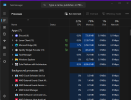
The window should look something like this:
Make sure you don't end the task "Java(TM) Platform SE binary"
►#2: Installing Optifine
Optifine is a Minecraft mod that focuses on improving fps, it can really benefit and is allowed on the network. Optifine is simple to install and has many settings which you can change in the video settings. Here is a link to the mod website: http://optifine.net/
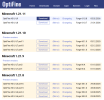
Step 1: Visit http://optifine.net/downloads and select the download link that suites your version. Step 2: Wait for 5 seconds and click the purple SKIP button. (AVOID ANY DOWNLOAD BUTTONS AT THIS STEP) Step 3: Next click the blue text that says "Download", it should be below text saying OptiFine *.*.*_**_*_**" Make sure you do not press any other download link on the page, these are scams. Step 4: Open the jar file downloaded, if it is not a jar file, do not open it. Make sure to open it with JAVA SE BINARY, not any jar archiver program (WinRAR). This should show a small window labeled "Optifine Installer", from there simply press "Install". This should start the installation of Optifine. Step 5: Open up your Minecraft launcher and change the profile to "Optifine"
vvvvvvvvvvvvvv (switch this to OptiFine) vvvvvvvvvvvvvv Step 6: Hit play and voila! You have successfully installed OptiFine. If you have any problems either post here or contact OptiFine on their website.
►#3: Configuring Recommended Settings
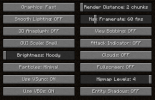
There are multiple video settings and you should use them for the best gameplay but here are some recommended options for different types of computers:
WITHOUT OPTIFINE
Obviously some settings can be changed to your liking, OptiFine also has a feature where hovering over a setting will explain to you the best option.
►#4: JVM Terms & Memory Lag Spikes
Minecraft can get very hot and sweaty after being played for long periods of time, JVM terms can help allow the game to run for longer without Memory overflow. Memory overflow is when your Minecraft memory continuously hits 100%. You can tell this is happening if you are getting frequent lag spikes and when pressing F3 in the top right corner "Mem: ~99%" shows. You can fix this by allocating more ram in your JVM arguments.
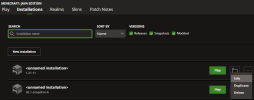
To change your JVM arguments you need to open your launcher, navigate to Installations, and press on "Edit" under "..." for whatever version you want to modify.
Next you need to click on the "More Options" text:
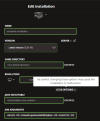
In the text box that becomes enabled, you can type in your JVM terms. To find the perfect term for you, navigate to your computer properties. On windows, it is found here: Control Panel\System and Security\System
Note the number after "Installed Memory (RAM)" and take away 3 from that number.
If you are running on Windows and your applications and operating system fill up the whole ram, parts start getting moved to your hard drive.
Your hard drive usually a lot slower than your ram, so your computer would feel very slow altogether.
I would recommend capping Minecraft in a way that there will always be enough space for your operating system + a few other apps, so Minecraft taking up less than half at max sounds good.
Now select everything in the JVM arguments box and copy and paste one of the following:
Here is a list of mods programs that like to use a lot of CPU, these programs and mods can cause lag spikes in-game. (Remember that mods are always considered use at your own risk)
• Shaders (All I can think of right now, if I think of more I'll add them)
• Any Adobe application
• Internet Explorer
• Any recording program or streaming program
• Razer Synapse (especially the VAD audio streaming)
- Cinema 4D
• Most development applications
• Apple automatic updating notification
• Antiviruses running constant scans in the background
• Windows Video Player
• Groove
• Other Minecraft Instances
• Spotify
• Any windows apps
►#6: Other Improvements
Here is a quick list of extra improvements that could help with lag:
There are several clients that can also give large FPS boosts (eg. Labymod, Badlion, CM Client, Lunar Client, Silent Client), . RECOMMENDED and used by myself: Lunar Client, make sure to only download these clients from the official websites.
Reduce display resolution (i.e. if you have a 1080p monitor, make it use 720p) or amount of displays (If you are really lagging, only use one display, not 2 or more).
Sometimes your router gets a little bit tired from lots of bandwidth usage, maybe it just needs a restart. On most routers, to restart, you need to unplug the power cable then after 5 seconds plug it back in. This is typically always going to be your easiest fix, and should always be your first attempt to solve a ping issue.
►#2: Flushing DNS Cache
Your DNS cache can cause a major ping increase, it is recommended to flush it frequently.
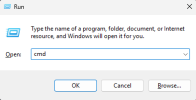
To flush your DNS, you need to open your command prompt (to do this, hit WINDOWS KEY + R and type in cmd)
Next, in the command prompt, type in "ipconfig /flushdns" and press ENTER
your command prompt should appear like this:
►#3: Keep The Internet to Yourself
The internet can be slow with lots of people using it, especially when someone is streaming 4k Netflix in the living room. Make sure to keep the internet clear while gaming as it will reduce your ping dramatically.
►#4: Connecting Via Alternate IPs
There are actually several alternate IPs for PikaNetwork, each of these may have different connection speeds and could possibly help more than the main "play.pika-network.net". You should note that this will only make a difference in a few rare cases. For most people this will have absolutely no effect for most players.
Using a software such as ExitLag, can automatically modify your computer settings to maximize your ping. You could also try to use a VPN on the server to help with ping. VPNs are only approved for certain players, and in order to use one you would need to put in a VPN Whitelist Appeal and have it be approved. These can make drastic changes to your ping when playing on the server.
A quick note for anyone who makes a VPN Whitelist Appeal: These requests are only handled by two staff members. They deal with a very large influx of VPN Whitelist Appeals, on top of everything else they have to deal with in their own lives, and other staff duties. These staff members are volunteers, so please be patient throughout this process, you can expect it to take a bit of time. Pinging the staff members in charge of these requests on Discord or messaging them on the forums will not make them check your appeal any quicker, you just need to sit back and wait, while constantly checking for any updates on the forums.
Well I did mention at the start that this was primarily for premium, but a lot of these tips can still apply to cracked. If there is enough interest I would be willing to research more methods that are for cracked players specifically and add a section to this guide.
Well I did mention at the start that this was primarily for premium, but a lot of these tips can still apply to cracked. If there is enough interest I would be willing to research more methods that are for cracked players specifically and add a section to this guide.
holy rich people anyway you can basically do anything a premium player can except for joining premium servers and mods that require an account(like MCSR)
Your frames per second is determined by many different things, first is your CPU usage on your computer. If you have lots of applications or processes running on your computer, it can get very slow especially with lower-grade processors. To kill applications and processes that run in the background you need to use the task manager, this can be accessed several ways:
Right-clicking taskbar
WINDOWS KEY + R then typing "taskmgr"
CONTROL + ALT + DELETE then pressing "Task Manager"
The window should look something like this:
Optifine is a Minecraft mod that focuses on improving fps, it can really benefit and is allowed on the network. Optifine is simple to install and has many settings which you can change in the video settings. Here is a link to the mod website: http://optifine.net/
Step 1: Visit http://optifine.net/downloads and select the download link that suites your version. View attachment 137811 Step 2: Wait for 5 seconds and click the purple SKIP button. (AVOID ANY DOWNLOAD BUTTONS AT THIS STEP) View attachment 137812 Step 3: Next click the blue text that says "Download", it should be below text saying OptiFine *.*.*_**_*_**" Make sure you do not press any other download link on the page, these are scams. Step 4: Open the jar file downloaded, if it is not a jar file, do not open it. Make sure to open it with JAVA SE BINARY, not any jar archiver program (WinRAR). This should show a small window labeled "Optifine Installer", from there simply press "Install". This should start the installation of Optifine. Step 5: Open up your Minecraft launcher and change the profile to "Optifine"
vvvvvvvvvvvvvv (switch this to OptiFine) vvvvvvvvvvvvvv View attachment 137813 Step 6: Hit play and voila! You have successfully installed OptiFine. If you have any problems either post here or contact OptiFine on their website.
►#3: Configuring Recommended Settings
There are multiple video settings and you should use them for the best gameplay but here are some recommended options for different types of computers:
Obviously some settings can be changed to your liking, OptiFine also has a feature where hovering over a setting will explain to you the best option.
►#4: JVM Terms & Memory Lag Spikes
Minecraft can get very hot and sweaty after being played for long periods of time, JVM terms can help allow the game to run for longer without Memory overflow. Memory overflow is when your Minecraft memory continuously hits 100%. You can tell this is happening if you are getting frequent lag spikes and when pressing F3 in the top right corner "Mem: ~99%" shows. You can fix this by allocating more ram in your JVM arguments.
To change your JVM arguments you need to open your launcher, navigate to Installations, and press on "Edit" under "..." for whatever version you want to modify. View attachment 137815
Next you need to click on the "More Options" text: View attachment 137816
In the text box that becomes enabled, you can type in your JVM terms. To find the perfect term for you, navigate to your computer properties. On windows, it is found here: Control Panel\System and Security\System
Note the number after "Installed Memory (RAM)" and take away 3 from that number.
If you are running on Windows and your applications and operating system fill up the whole ram, parts start getting moved to your hard drive.
Your hard drive usually a lot slower than your ram, so your computer would feel very slow altogether.
I would recommend capping Minecraft in a way that there will always be enough space for your operating system + a few other apps, so Minecraft taking up less than half at max sounds good.
Now select everything in the JVM arguments box and copy and paste one of the following:
Here is a list of mods programs that like to use a lot of CPU, these programs and mods can cause lag spikes in-game. (Remember that mods are always considered use at your own risk)
• Shaders (All I can think of right now, if I think of more I'll add them)
• Any Adobe application
• Internet Explorer
• Any recording program or streaming program
• Razer Synapse (especially the VAD audio streaming)
- Cinema 4D
• Most development applications
• Apple automatic updating notification
• Antiviruses running constant scans in the background
• Windows Video Player
• Groove
• Other Minecraft Instances
• Spotify
• Any windows apps
►#6: Other Improvements
Here is a quick list of extra improvements that could help with lag:
There are several clients that can also give large FPS boosts (eg. Labymod, Badlion, CM Client, Lunar Client, Silent Client), . RECOMMENDED and used by myself: Lunar Client, make sure to only download these clients from the official websites.
Reduce display resolution (i.e. if you have a 1080p monitor, make it use 720p) or amount of displays (If you are really lagging, only use one display, not 2 or more).
This site uses cookies to help personalise content, tailor your experience and to keep you logged in if you register.
By continuing to use this site, you are consenting to our use of cookies.